
1.9 KiB
Create and assign a graph to an existing GameObject
You can use the empty graph creation flow to create a new graph file and assign it to an existing GameObject in your project.
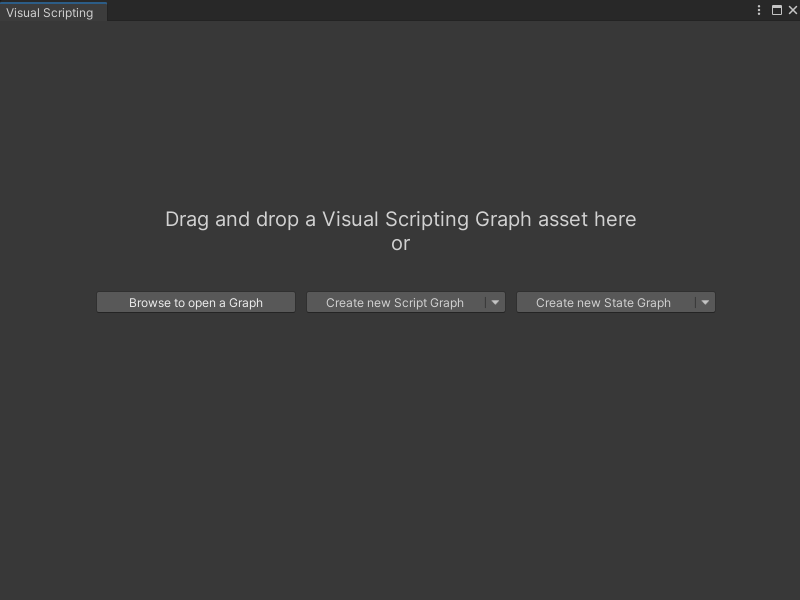
For more information on other ways to create a graph file, see Create a new graph file.
Create a Script Graph
To create a new Script Graph and assign it to an existing GameObject:
-
[!includevs-open-hierarchy-window]
-
In the Hierarchy window, select the GameObject where you want to assign the new graph.
-
[!includevs-visual-scripting-window]
-
Expand Create new Script Graph.
-
Select on selected game object.
-
Choose a location to save the new graph file.
-
Enter a name for the graph.
-
Select Save.
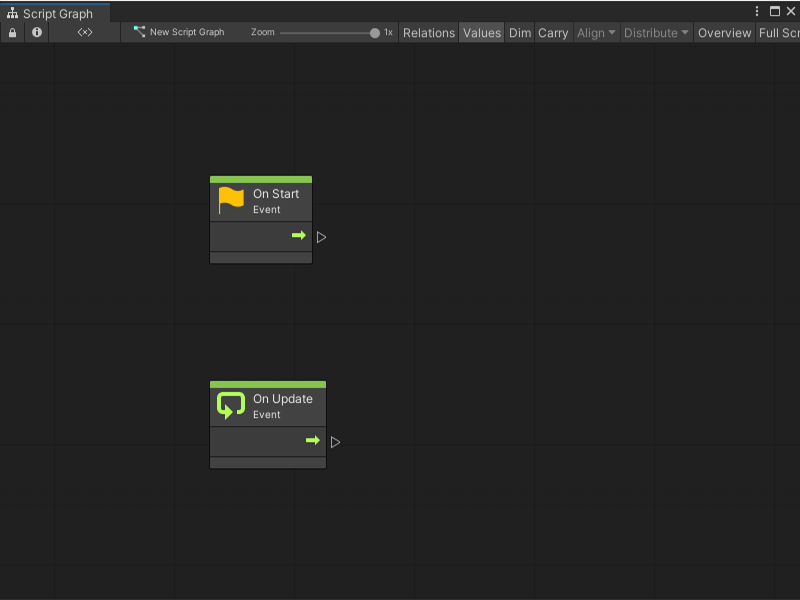
The new graph file automatically opens in a new window.
Create a State Graph
To create a new State Graph and assign it to an existing GameObject:
-
[!includevs-open-hierarchy-window]
-
In the Hierarchy window, select the GameObject where you want to assign the new graph.
-
[!includevs-visual-scripting-window]
-
Expand Create new State Graph.
-
Select on selected game object.
-
Choose a location to save the new graph file.
-
Enter a name for the graph.
-
Select Save.
The new graph file automatically opens in a new window.
Next steps
After you create a new graph, attach it to a Script Machine or State Machine to use it in your application. For more information, see Attach a graph file to a Script Machine or State Machine.